



What is a network security key and where can you find it?
Finding a network security key may sound technical, but it’s really just a string of letters, numbers, and symbols that we usually call a Wi-Fi password. Read on to learn how and where to find a network security key, how it safeguards a Wi-Fi network, and how Norton VPN adds an extra layer of protection to your online security.

2025
PCMag
60X Winner


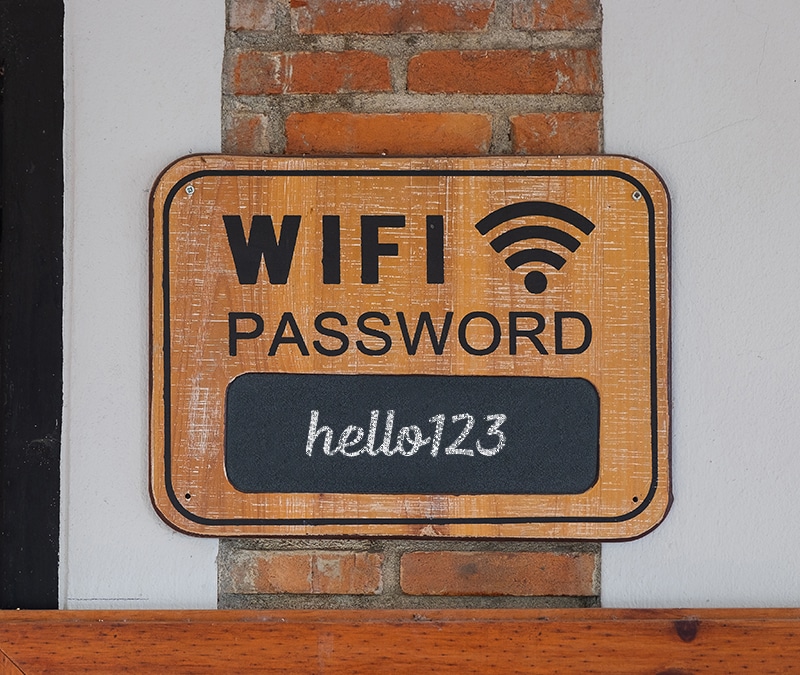

What is a network security key?
A network security key is the password you enter to connect to a Wi-Fi network. It establishes a connection between the router and the devices that connect to the Wi-Fi network. A network security key helps protect a Wi-Fi network and the people using it from snoops or intruders trying to piggyback on your connection.
Types of network security keys
Most Wi-Fi networks use one of four types of network security keys: Wired Equivalent Privacy (WEP), Wi-Fi Protected Access (WPA), Wi-Fi Protected Access 2 (WPA2), or Wi-Fi Protected Access 3 (WPA3).
These types of network security keys may sound familiar, because they’re usually listed on routers to indicate which type of encryption is available. They are all protocols designed to protect Wi-Fi networks from hackers, but there are differences in the encryption standard that each type of network security key uses.
Here’s a closer look at the four types of network security keys:
WEP (Wired Equivalent Privacy)
Wired Equivalent Privacy (WEP) was the first Wi-Fi security protocol developed. It used a static encryption code that is now outdated and easy to crack using downloadable decryption software. That means that WEP offers minimal protection and shouldn’t be used — in 2003, the Wi-Fi Alliance announced that WPA had replaced WEP.
WPA (Wi-Fi Protected Access)
As the successor to WEP, WPA is a more secure network protocol that improved on WEP in many ways. For example, WPA uses a dynamic message integrity check algorithm called Temporal Key Integrity Protocol (TKIP) to generate a new encryption key for each packet (unit of data) that’s sent across a network.
But despite WPA’s significant improvements over WEP, it’s still vulnerable to the rising number of cyberattacks.
WPA2 (Wi-Fi Protected Access 2)
Wi-Fi Protected Access 2 (WPA2) is the second generation of WPA and introduced the Advanced Encryption System (AES) to replace the more vulnerable TKIP system used by WPA. AES provides strong encryption for all data sent and received over a Wi-Fi network.
WPA2 can still be compromised, but when it comes to router security, WPA2 is better than the previous protocols at preventing unauthorised access to a Wi-Fi network.
WPA3 (Wi-Fi Protected Access 3)
Wi-Fi Protected Access 3 (WPA3) is the latest protocol and was created to replace WPA2, although WPA2 remains widely used. WPA3 offers the best network security, allowing devices to join a network without transmitting a password. Instead, you sign in to a network using a QR code or NFC tag.
Most routers certified after 2018 (when WPA3 was introduced) support WPA3 and all routers certified after July 1, 2020 must support it.
How to find your network security key
The network security key is usually on the bottom or back of your router. But if the default Wi-Fi security key has been changed, you’ll need to find it using a device that’s connected to the Wi-Fi network.
We’ll show you how to find your network security key on a router, Mac computer, Windows PC, iPhone, or Android device.
Where to find the network security key on a router
Most routers come with the network key written on the back or bottom of the router. It’s usually labelled with a different name, such as passcode, password, wireless password, or simply security key.

If you can’t find the network security key on the router, check your router’s instruction manual.
After locating your default network security key, it’s a good idea to change the password periodically. This helps keep your Wi-Fi network safe from hackers or people piggybacking off your internet connection.
Here’s how to change your Wi-Fi password:
1. Sign in to your router by entering your IP address into the address bar of your browser and then clicking enter. Add your router username and password, then click Continue.

2. Find the wireless security settings area — it could be labeled Wireless Settings, Security Settings, Wireless Configuration, or something similar. Enter a strong, secure password, then save the changes.

Your new network security key is now set. Don’t forget to reconnect your devices to your Wi-Fi network using your new network key.
Where to find the network security key on Mac
Here’s how to find your network security key on a Mac:
1. Click the Spotlight Search icon in the top-right of your screen.

2. Search for Keychain Access, then select the app from the search results.

3. Locate your Wi-Fi network in the list, then double-click it to open the Wi-Fi settings window.

4. Click the Show password checkbox.

5. Verify your identity using Touch ID or click Use Password.

6. If you choose to use your password, enter your admin Username and password, then click Allow. Your Wi-Fi security key will now be visible.

Where to find the network security key on Windows
Here’s how to find your network security key on Windows 10 and 11:
1. Click the Search button and type “control panel” into the search bar, then click Open.

2. Choose Network and Internet.
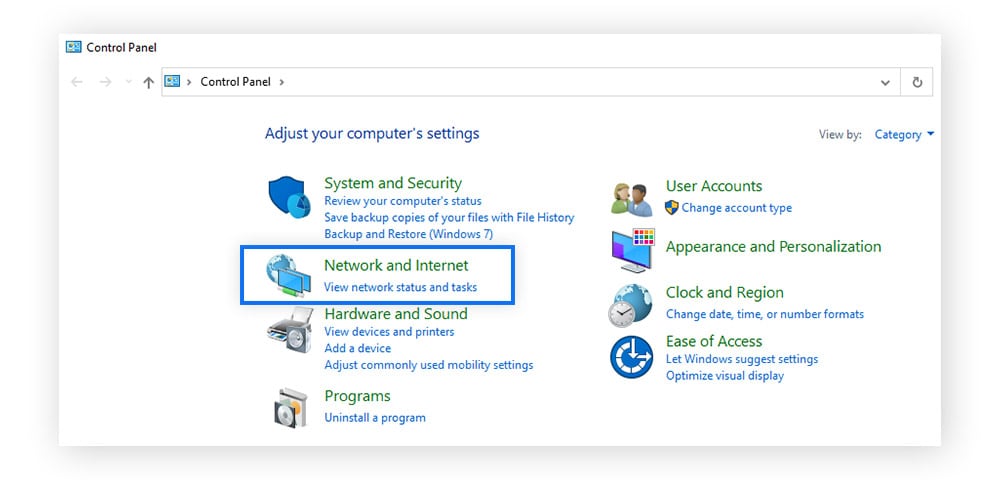
3. Click Network and Sharing Center.

4. Click your Wi-Fi network name.

5. Click Wireless Properties.

6. Choose the Security tab, then click the Show characters checkbox. Your internet security key will now be displayed.

Where to find the network security key on iPhone (iOS)
Here’s how to find your network security key on iOS:
1. Tap Settings.

2. Tap Wi-Fi, then tap the info icon next to the name of the Wi-Fi network you’re connected to.

3. Tap Password to reveal the Wi-Fi password. Your network security key will now be visible.

Where to find the network security key on an Android phone
It’s not possible to view Wi-Fi network security keys on newer Android devices. But you can find a QR code to share, which is more secure. Devices that scan the QR code can then join the Wi-Fi network.
Here’s how to access the Wi-Fi sharing QR code on Android:
1. Tap Settings.

2. Tap Connections then Wi-Fi.

3. Select the current network you’re connected to.

4. The QR code will appear and the person wanting to connect can scan the code and join the Wi-Fi network.

Tips for choosing a strong network security key
Choosing a strong password for all your online accounts is essential.
Follow these tips for choosing a strong network key:
- Prioritise password length: The longer the password, the harder it is to crack.
- Use special characters: Incorporating symbols like &, !, @, #, $, %, ^, make your password more complex and more difficult to hack.
- Use a password generator: Try the Norton password generator to get a random combination of letters, symbols, and numbers.
- Change it periodically: Change your password every few months to keep your Wi-Fi network protected from unauthorised access.
- Don’t reuse a password: Choose a secure password and don’t use the same one (or a variation of it) for any of your other accounts. Then, if a hacker decodes your Wi-Fi password that password won’t give them access your other accounts.
And remember, even the strongest network security keys are less effective when you start sharing them with guests and visitors. If you frequently find yourself giving out your internet security key to visitors, you may want to consider setting up a guest network so you can share your Wi-Fi without sharing your password.
Protect your device and sensitive information
Managing your network security key is just one part of effective digital hygiene and keeping yourself and your sensitive data safe online. Even if your Wi-Fi password is strong, your data can still be intercepted.
Whether you’re using a public or private Wi-Fi network, Norton VPN encrypts your internet connection to help safeguard the personal information you send and receive online, like your passwords and banking details. Install Norton VPN and start browsing more security today.
FAQs about network security keys
What is a network security key mismatch error?
A network security key mismatch error prevents you from connecting to a Wi-Fi network. This error is usually caused by an incorrect password, device incompatibility, or a problem with the router:
- Incorrect password: Network security keys are case-sensitive, and it’s easy to make a mistake when entering a long chain of characters.
- Device incompatibility: Check that the operating system is up to date on the device you’re trying to connect to Wi-Fi, and, if you’re on Windows, that your drivers are updated too.
- Router problem: A flashing or unusual light on the router may indicate that the router has crashed or is malfunctioning. Try turning it off and back on again.
Where do I find the network security key for a hotspot?
Your hotspot network security key is the password needed for another device to connect to your iPhone or Android’s internet connection (mobile data sharing). Here’s how to find it:
- iOS: Go to Settings > Personal Hotspot and the key is listed under Wi-Fi Password.
- Android: Go to Settings > Connections > Mobile Hotspot and Tethering > Mobile Hotspot and the key is listed under Password.
How often should I change my network security key?
You should change your network security key every three months. This will remove all devices from your network, and only those that have the new password will be able to reconnect. That way you control who has access to your Wi-Fi network.
Is the network security key the same as the password?
Yes, the network security key is the same as the Wi-Fi password. It’s the string of characters needed to unlock access to a Wi-Fi network.
Why am I being asked for a network security key?
A network security key provides access to a Wi-Fi network. This is a security measure to prevent unauthorised devices from connecting to the Wi-Fi. The network key is typically set by the network administrator or the owner of the Wi-Fi router.
Editorial note: Our articles provide educational information for you. Our offerings may not cover or protect against every type of crime, fraud, or threat we write about. Our goal is to increase awareness about Cyber Safety. Please review complete Terms during enrollment or setup. Remember that no one can prevent all identity theft or cybercrime, and that LifeLock does not monitor all transactions at all businesses. The Norton and LifeLock brands are part of Gen Digital Inc.






Want more?
Follow us for all the latest news, tips, and updates.